

Is your PC freezing right before a client call? Experiencing lag during critical deadlines or stuck in a reboot loop during a project delivery?
These everyday issues don’t just frustrate; they disrupt productivity and drain valuable time in both office environments and remote work setups. Knowing how to troubleshoot these problems quickly can mean the difference between a smooth workday and a major delay.
That’s where this IT support FAQs guide comes in. It tackles real-world PC problems faced by working professionals and remote employees, offering clear solutions that get you back on track without waiting around for tech support.
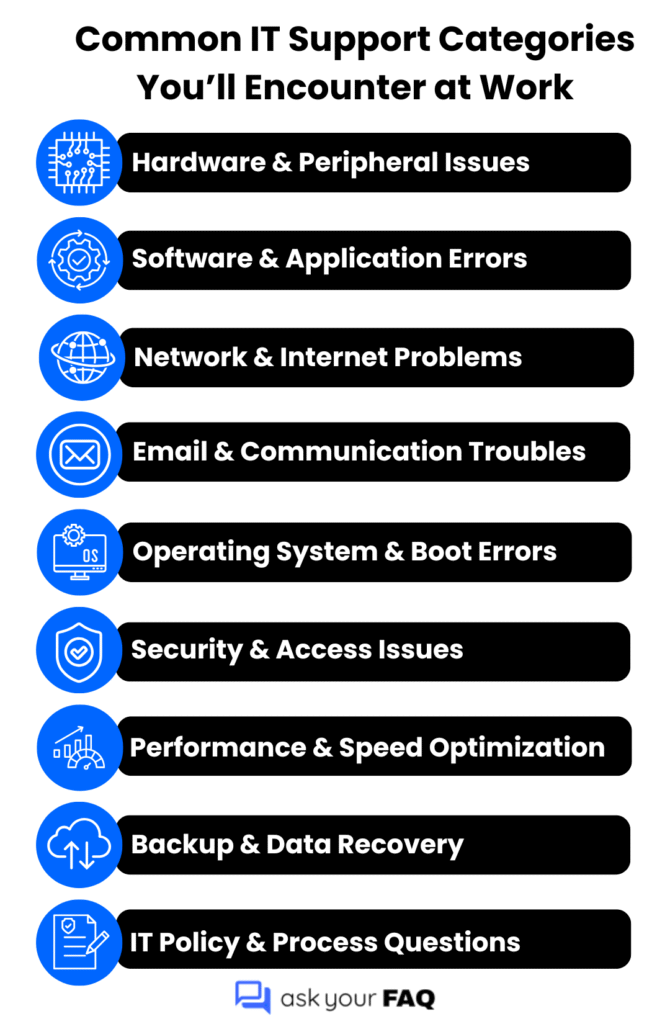
To streamline your troubleshooting experience, we’ve organized these IT support FAQs into key categories that reflect the most frequent challenges faced in professional work settings.
Hardware & Peripheral Issues
From an unresponsive mouse to a monitor that won’t display, hardware glitches can halt productivity fast. When your tools stop cooperating, deadlines don’t wait. The following questions guide you through common device-related problems and how to resolve them quickly.
1. Why isn’t my printer connecting to my computer?
Start by checking the physical connection:
- For USB printers, ensure the cable is securely connected to both the printer and your computer. Try a different USB port if needed.
- For network or wireless printers, confirm both devices are on the same network. Restart your router if needed.
- Open your system’s “Devices and Printers” settings to see if the printer is listed. If not, click “Add a printer” and follow the prompts.
- Update or reinstall the printer driver using the manufacturer’s website.
- Restart both your printer and computer to refresh the connection.
If the issue persists, check whether other users can print. If not, there may be a broader network or printer issue that requires escalation.
2. My monitor suddenly went black. What should I do?
Follow these steps to identify the cause:
- Check the power cable – Make sure the monitor is properly plugged into a power source and the power light is on.
- Inspect the video cable – Verify the cable is securely connected to both the monitor and your computer. If you can, try another cable.
- Tap the keyboard or move the mouse – Your computer might just be asleep.
- Try connecting the monitor to another computer or using a different monitor to rule out hardware failure.
- If using a laptop, press Windows + P to toggle between display modes (duplicate, extend, etc.).
If none of the above works, escalate the issue to IT, as it could be a graphics card or internal hardware issue.
3. How can I fix a keyboard that’s not responding?
Here’s how to troubleshoot a non-working keyboard:
- Unplug the keyboard and reconnect it (for USB keyboards).
- If it’s wireless, replace the batteries or recharge the device. Reconnect it via Bluetooth if applicable.
- Try another USB port or a different computer to test functionality.
- Restart your computer to rule out temporary software issues.
- Open Device Manager → Keyboards → Right-click your keyboard and select Update driver or Uninstall device, then restart your PC.
If your keyboard still doesn’t work, it may be a hardware failure and needs replacement.
4. Why is my mouse lagging or not moving correctly?
If your mouse feels slow or unresponsive, try these quick steps to fix it:
- Check the surface – Make sure it’s flat and clean. Avoid glass or reflective surfaces.
- Replace batteries – If wireless, a low battery is a common cause.
- Try another USB port – A faulty port can cause lag.
- Restart your PC – This clears temporary issues.
- Update drivers – Go to Device Manager > Mice > Update driver.
If it still lags, try another mouse to confirm if it’s a hardware issue.
5. What does it mean when my computer keeps overheating?
Your computer is overheating because it’s not cooling properly. This usually happens when dust blocks the vents, fans stop working, or too many apps are running at once. Overheating can slow your system, crash apps, or even damage hardware.
Make sure nothing is blocking the vents, clean out the dust if needed, and avoid placing your laptop on soft surfaces. If the fan sounds loud constantly, contact IT to check it.
6. Why won’t my USB devices show up when plugged in?
If your USB device isn’t recognized, use this checklist to find the issue:
| Possible Cause | What You Should Do |
| Faulty USB port | Plug the device into a different port |
| Device issue | Test the USB on another computer |
| Driver error | Open Device Manager → Update or reinstall drivers |
| Needs disk setup | Open Disk Management → Assign drive letter or format |
| Power issue via hub | Plug directly into your PC (not through a USB hub) |
If none of these work, let IT know; it could be a hardware or driver conflict.
Software & Application Errors
From crashing programs to frozen screens, software issues can bring your workflow to a standstill. Whether it’s a buggy update or a corrupted file, these glitches demand fast solutions. The following questions help you troubleshoot common software problems and get back on track quickly.
7. Why does my software crash or freeze unexpectedly?
If your app keeps freezing or crashing, it’s usually due to system overload, software bugs, or compatibility issues. When too many programs run at once, or if the app isn’t updated, it may stop responding.
Low memory, old drivers, or a corrupted file can also cause this. Restart your system first. Then check for software updates, clear temporary files, and close unused programs. If it happens with one app only, reinstall it or contact IT to investigate further.
8. How can I fix “not responding” errors in business applications?
Follow these steps to fix unresponsive apps without restarting your whole system:
- Wait a few seconds – Some apps just need time to catch up.
- Force close the app – Press Ctrl + Shift + Esc → Open Task Manager → End Task.
- Restart the app – Reopen the app and check if it works properly.
- Clear temp files – Press Windows + R, type temp, and delete files inside.
- Update the application – Go to the app’s settings or official site to install the latest version.
- Reboot your PC – This clears memory and restarts app services.
If it happens repeatedly, contact IT to check system logs or reinstall the app.
9. Why is Microsoft Office not opening or functioning properly?
If Office apps like Word or Excel won’t open, the installation or profile may be corrupted.
Try restarting your PC first. Then open any Office app in Safe Mode (hold Ctrl while launching the app). If it works there, the problem may be add-ins or user settings.
You can also repair Office from Control Panel > Programs > Microsoft Office > Change > Quick Repair.
10. How do I repair or reinstall corrupted applications?
Use this quick checklist to fix or reinstall apps that aren’t working right:
| Action | What to Do |
| Basic Repair | Go to Control Panel > Programs > Select App > Click Change/Repair |
| Reset App Settings (Windows 10/11) | Settings > Apps > Installed apps > Select app > Advanced Options > Reset |
| Full Reinstall | Uninstall the app > Restart your PC > Reinstall from the official site/store |
| Check for leftovers | Delete leftover folders from Program Files or AppData, if needed |
Contact IT if you’re unsure which version to install or need admin rights.
11. Why are my screen-sharing tools not launching during meetings?
This usually happens due to blocked permissions, outdated apps, or conflicting software.
Make sure your tool is fully updated. Then check if your OS has allowed screen-sharing permissions:
- On Windows: Go to Settings > Privacy > Screen Capture (if available).
- On Mac: Go to System Settings > Privacy & Security > Screen Recording → Enable for the app.
Also, disable VPN or any screen overlay apps that could interfere. Restart the app and try again.
12. How can I deal with frequent update failures in my apps?
If your apps fail to update often, the problem could be network issues, blocked permissions, or low disk space. Here’s what to do:
- Ensure a stable internet connection – Use wired or strong Wi-Fi.
- Run the app as Administrator – Right-click > Run as Admin can fix update access issues.
- Clear storage space – Low disk space can stop updates from completing.
- Disable antivirus temporarily – Some tools block app installers.
- Reinstall the app – This often resolves stubborn update errors.
If updates keep failing, contact IT support so they can run diagnostics or push updates manually.
Network & Internet Problems
A dropped connection or sluggish internet can disrupt everything from emails to cloud access. When your network fails, collaboration and communication grind to a halt. The following questions help you diagnose and fix common connectivity issues to stay online and productive.
13. Why is my internet so slow during work hours?
If your internet slows down during work hours, it’s likely due to network congestion or background usage. Multiple users at home, video calls, and large file uploads can eat up bandwidth.
Also, apps like cloud backups or software updates may run in the background. Pause non-essential apps, avoid streaming during meetings, and use a wired connection if possible. If the issue continues daily, contact your ISP or IT for a usage check.
14. How do I fix constant Wi-Fi disconnections while working remotely?
Use these steps to improve your Wi-Fi stability:
- Restart your router and PC – A quick reboot fixes most temporary drops.
- Move closer to the router – Distance and walls weaken signal strength.
- Forget and reconnect – On your device, forget the Wi-Fi network and rejoin it.
- Update Wi-Fi drivers – Open Device Manager > Network adapters > Update driver.
- Use 5GHz Wi-Fi – If available, it’s faster and less crowded than 2.4GHz.
- Limit devices – Disconnect unused phones or smart devices hogging bandwidth.
15. What should I do when my VPN isn’t connecting?
If your VPN fails to connect, the issue is usually with your internet, firewall, or credentials.
Start by checking your internet connection. Then restart the VPN app and your device.
Make sure your login credentials are correct. If you’re on a public network or behind a firewall, it may block the VPN. Try switching networks or contacting IT for alternate settings or server configurations.
16. Why does my system say “No Internet Access” even though I’m connected?
This message usually means your device is connected to the router but can’t reach the internet.
It could be due to a temporary outage, DNS failure, or a firewall setting. Restart your router and PC first.
Then run the Windows Network Troubleshooter from Settings > Network & Internet > Status > Troubleshoot. If you still can’t get online, test another device. If that also fails, it’s likely a router or ISP issue. Contact IT if only your work device is affected.
Email & Communication Troubles
Missed messages or email errors can lead to miscommunication and lost opportunities. When your primary tools for staying in touch break down, it’s more than just an inconvenience. The following questions address common communication issues and how to resolve them efficiently.
17. Why am I not receiving emails in Outlook or Gmail?
If you’re missing emails, it’s usually due to filters, full storage, or sync issues. Start by checking your Spam, Trash, and Other/Promotions tabs. Make sure your mailbox isn’t full (especially in Gmail).
In Outlook, check if any rules are moving emails to folders. Also, verify you’re connected to the internet and logged into the correct account. Still missing emails? Restart the app and contact IT to check server-side blocks.
18. How do I fix delayed or failed email sending?
Follow these steps to troubleshoot slow or failed outgoing emails:
- Check your internet – A weak connection can delay or block sending.
- Look for large attachments – Break them into smaller files or use cloud links.
- Clear Outbox – Go to your Outbox folder and remove stuck messages.
- Restart the app – Fully close and reopen Outlook or Gmail.
- Update your app – Make sure you’re using the latest version.
- Check for server issues – Visit your email provider’s status page or contact IT.
19. Why can’t I log in to my email client?
If your login fails, it’s either incorrect credentials, network problems, or account restrictions.
Double-check your email and password. Ensure Caps Lock is off and you’re connected to the internet. If you’re using two-factor authentication, enter the correct code.
If you recently changed your password, some email apps may need you to re-enter it manually. Still locked out? Contact IT to reset your credentials or check for account blocks.
20. What causes attachments to fail or not open?
Use this table to identify why email attachments might fail:
| Issue | What to Check |
| File too large | Check if it’s over the provider’s limit (e.g., 25MB in Gmail) |
| Unsupported file type | Try downloading and opening with the right app |
| Antivirus or firewall blocking | Disable temporarily or try another device |
| Corrupted attachment | Ask the sender to resend the file |
| Download blocked by browser | Try using a different browser or check download permissions |
21. Why are messages not syncing across my devices?
If emails aren’t syncing, the issue may be with your account settings, connection, or app sync.
Make sure you’re using IMAP (not POP) for consistent syncing across devices. Check that sync is enabled in your email app’s settings and that you’re signed in with the same account.
Restart your email apps and ensure you’re connected to the internet. If one device still won’t sync, remove the account from that device and re-add it.
Operating System & Boot Errors
Startup failures, blue screens, or system crashes can leave your device unusable when you need it most. These critical errors often signal deeper issues that require immediate attention. The following questions walk you through common OS and boot-related problems to help restore functionality quickly.
22. Why is my PC stuck on the boot screen?
If your PC freezes on the boot screen, it’s usually due to startup errors or hardware issues.
Start by restarting your system. If it hangs again, unplug any USB devices (drives, dongles, etc.) and restart.
Sometimes, BIOS settings or a failing hard drive can cause boot issues. If the problem continues, boot into Safe Mode or Startup Repair using a recovery USB or the F8 key. If nothing works, contact IT for diagnostics.
23. What can I do when Windows won’t start properly?
Follow these steps to troubleshoot startup issues:
- Restart the system – Sometimes it recovers on the second attempt.
- Boot into Safe Mode – Hold Shift while clicking Restart > Troubleshoot > Advanced Options > Startup Settings > Enable Safe Mode.
- Run Startup Repair – Same menu as above > Choose “Startup Repair.”
- Check for drive errors – In Safe Mode, run chkdsk /f in Command Prompt (as admin).
- Undo recent changes – Roll back drivers or system updates if the issue started recently.
24. How do I fix a system that keeps restarting automatically?
If your system keeps restarting automatically, check for overheating, faulty hardware, or recent software changes. Scan for malware, update or roll back drivers, and disable automatic restart in Safe Mode to identify error messages. If the issue continues, run hardware diagnostics or contact IT support.
Need quick help while troubleshooting? Try using an IT support FAQ chatbot to get real-time answers as you go; It can save time and guide you through step-by-step solutions without needing to wait for human assistance.
Also Read: What Is a FAQ Chatbot and How Does It Improve Customer Experience Online
25. What’s the solution for the “blue screen” crash error?
A Blue Screen (BSOD) means Windows stopped to prevent damage from hardware, drivers, or system file issues.
Make note of the error code (like MEMORY_MANAGEMENT, IRQL_NOT_LESS_OR_EQUAL, etc.). Then:
- Restart your PC.
- Update all drivers via Device Manager.
- Run a system file check (sfc /scannow in Command Prompt).
- Check for hardware issues (RAM, hard drive) if crashes repeat.
26. Why does my system hang after updates?
If your PC freezes after an update, something likely conflicted during installation. Try restarting. If it doesn’t boot or stays stuck, enter Safe Mode, uninstall the last update, and reboot.
Go to Settings > Windows Update > Update History > Uninstall Updates. Also, pause further updates until we confirm the system is stable. Let IT know if it happens more than once, they’ll investigate compatibility issues.
27. How can I repair a failed OS installation?
Use these steps if your OS install or update fails to complete:
- Boot from a recovery drive or Windows installation media.
- Choose “Repair your computer.”
- Go to Troubleshoot > Advanced Options > Startup Repair.
- If that fails, choose System Restore (if a restore point exists).
- Still stuck? Run Command Prompt and use sfc /scannow and DISM /Online /Cleanup-Image /RestoreHealth.
If the OS can’t be repaired, IT may need to back up your data and perform a clean reinstall.
Security & Access Issues
Forgotten passwords, denied access, or suspicious activity can put both data and systems at risk. When security barriers block your workflow, quick and safe resolution is critical. The following questions help you navigate common access problems and security concerns with confidence.
28. How to reset my password securely?
If you’ve forgotten your work account password, the safest way to reset it is by using the “Forgot Password” link on the login page. It’ll guide you through verifying your identity via your registered email or phone number.
If that doesn’t work, just reach out to IT to verify your details and send you a secure reset link. Once you get back in, choose a strong new password, preferably using a password manager to keep it safe and easy to remember.
29. How can I detect if my system has malware?
If your computer suddenly slows down, shows pop-ups, redirects your browser, or behaves oddly when no programs are open, it might be infected with malware. Start by running a full system scan using the antivirus software installed on your machine. If anything suspicious is found, quarantine it immediately.
30. How do I enable two-factor authentication for better security?
To add an extra layer of protection to your account, turn on two-factor authentication in your account settings. You’ll usually find it under “Security” or “Login Options.”
From there, you can choose a method like a text message, email, or an authenticator app. Once enabled, you’ll need both your password and the second method to log in.
Performance & Speed Optimization
Lagging systems, slow load times, or unresponsive programs can derail productivity and frustrate users. To keep things running smoothly, it’s essential to identify what’s dragging your system down. The following questions offer practical tips to boost performance and maintain a fast, efficient workflow.
31. How do I free up memory without deleting important files?
You can boost available memory by doing the following:
- Restart your PC – it clears temporary memory (RAM).
- Close unused apps or browser tabs running in the background.
- Run Disk Cleanup to remove temp files, cache, and system clutter.
Disable heavy startup apps from Task Manager. None of these steps deletes your important documents or files.
32. What’s the best way to clean up my startup programs?
To clean up startup programs:
- Right-click the Taskbar and select Task Manager.
- Go to the Startup tab.
- Right-click and disable any app you don’t use daily (like Spotify or third-party updaters).
Keep essential items like an antivirus enabled.
If unsure, check with IT before disabling anything system-related.
33. How can I improve performance when using heavy applications?
You can improve performance by closing all unused apps and browser tabs before launching resource-heavy software. If possible, increase your RAM or switch to a high-performance mode in your system settings.
Always save your work frequently and avoid multitasking with other demanding tools at the same time.
34. Why does my system take so long to shut down or restart?
Slow shutdowns often happen because background apps or updates are still running. Unsaved work or pending system processes can delay the process.
To fix this, make sure to close all programs before shutting down. If it happens often, we can run diagnostics to check for startup or update-related issues.
Backup & Data Recovery
Accidental deletions, hardware failures, or system crashes can put important data at risk. Whether you’re restoring a single file or recovering an entire system, quick action and the right tools are key. The following questions help you protect and retrieve your data with confidence.
35. What are the steps to restore a previous version of a document?
Follow these steps to restore an older version:
- Right-click the file.
- Select Properties.
- Go to the Previous Versions tab.
- Choose a version and click Restore or Open to view it first.
This works best if File History or cloud versioning is enabled.
36. Why isn’t my auto-save or backup working?
Auto-save may fail if the file is saved locally and not on a synced folder like OneDrive or Google Drive. Also, if cloud sync is paused, disconnected, or your app crashes, it won’t save changes. Ensure you’re working from a synced folder and that your cloud account is signed in and running properly.
37. How can I set up regular backups for work files?
To set up regular backups:
- Use OneDrive, Google Drive, or another approved cloud service.
- Save work files directly in the cloud-synced folder.
- For local backups, connect an external drive and use File History (Windows) or Time Machine (Mac) to schedule backups.
If you’re unsure, our team can configure this for you securely.
38. What should I do if my backup drive isn’t recognized?
Try these quick steps:
- Reconnect the drive and use a different USB port.
- Open Disk Management to check if it appears there.
- Restart your system and try again.
If it’s still not showing, the drive might be faulty or need reformatting. Contact IT for further help before reformatting.
39. How do I check if cloud backups are syncing correctly?
Look for a cloud sync icon (like a checkmark or spinning arrows) in your system tray. Click it to view recent activity or sync status. Files should show “Synced” or “Up to date.”
If syncing is paused or shows errors, resume sync or sign back into your account. You can also check directly in your cloud app’s web dashboard.
IT Policy & Support Process Questions
Understanding internal IT policies and knowing how to navigate support channels is essential for smooth operations. From request protocols to compliance guidelines, clarity is key to avoiding delays. The following questions decode the rules and reveal how to get help without hitting roadblocks.
40. How do I raise a support ticket properly?
When raising a support ticket, just give us the basics so we can help quickly. Include what the issue is, when it started, any error messages, and what you’ve tried so far.
Add a screenshot if you can. Choose the right category (like email, internet, or software), and mark it urgent only if it’s blocking your work. You can also use the internal IT chatbot to start the process faster.
Also Read: Enterprise Chatbot: How It Works, Benefits, and Use Cases
41. What are the guidelines for installing new software on my work PC?
Always check with IT before installing any new software. We need to verify if it’s secure, licensed, and compatible with your system.
Unauthorized apps can expose the network to risks or cause conflicts. Submit a request or ticket with the software name, purpose, and source, and we’ll guide you through a safe installation process.
IT Support FAQs: Turning Frustrations into Fixes
Technical hiccups may be inevitable, but confusion doesn’t have to be. Whether you’re dealing with frozen screens, Wi-Fi dropouts, or sudden system crashes, the right answer at the right time can make all the difference.
An effective IT support FAQ isn’t just a time-saver; it’s an essential part of keeping productivity on track and frustrations at bay. By addressing the most common troubleshooting PC issues, you empower your team to act fast, stay focused, and get back to what matters most.
Every solution you implement today strengthens your digital workspace for tomorrow. Keep learning, keep troubleshooting, and most importantly, keep building an environment where technology works with you, not against you.